Engage
Spend your LinkedIn time on the conversations that matter.
Lynki helps you focus on the right people, find relevant posts and engage with context — without turning LinkedIn into automated spam.
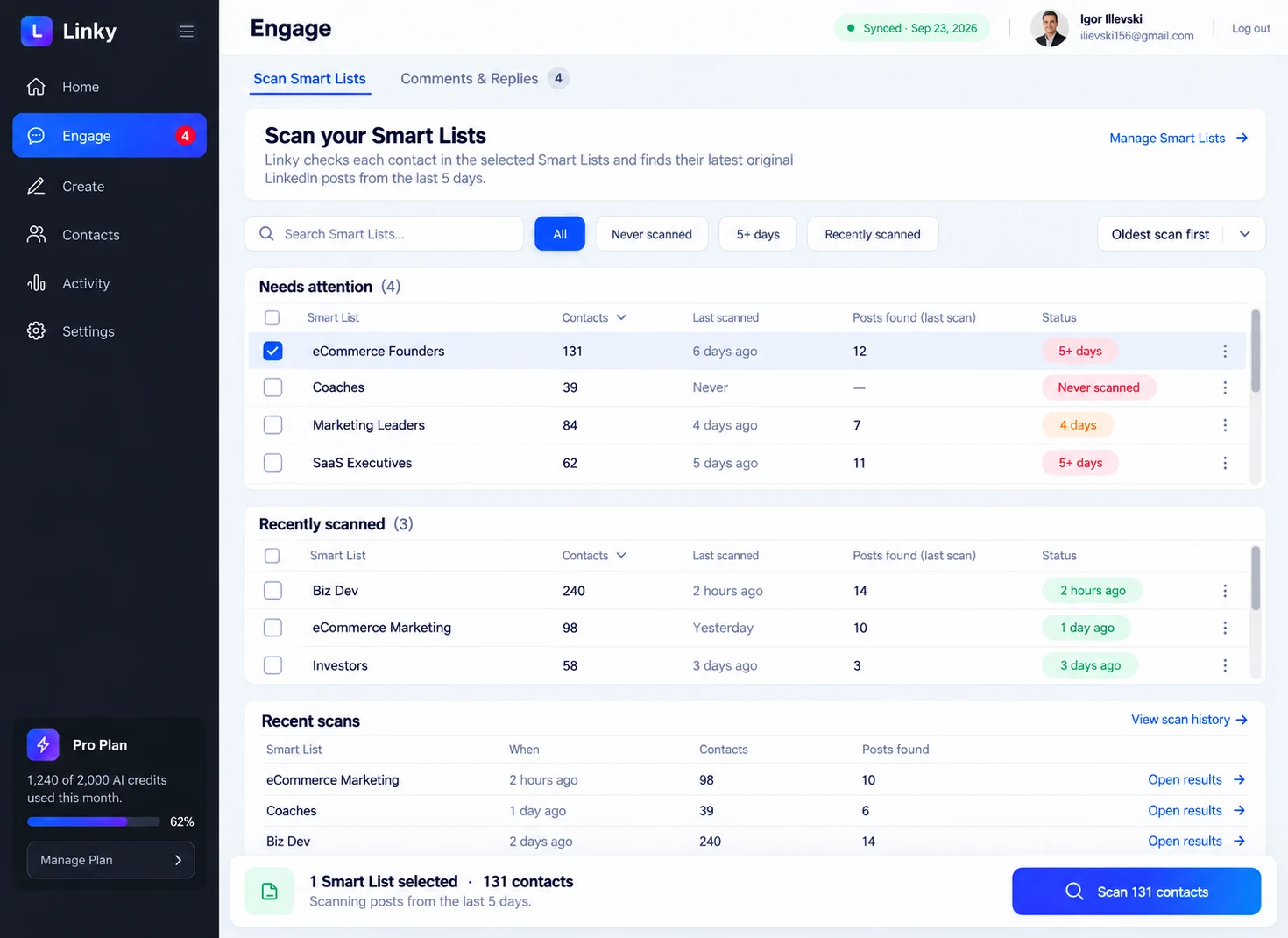
Engage · your Smart Lists, scanned and ready Sample data
01Scan Smart Lists
Choose the list, then scan it.
This is the screen you start from. Pick a Smart List on the left, see how fresh it is, and scan just those contacts — the feed is never read in place of the list.
01Engage · Smart Lists
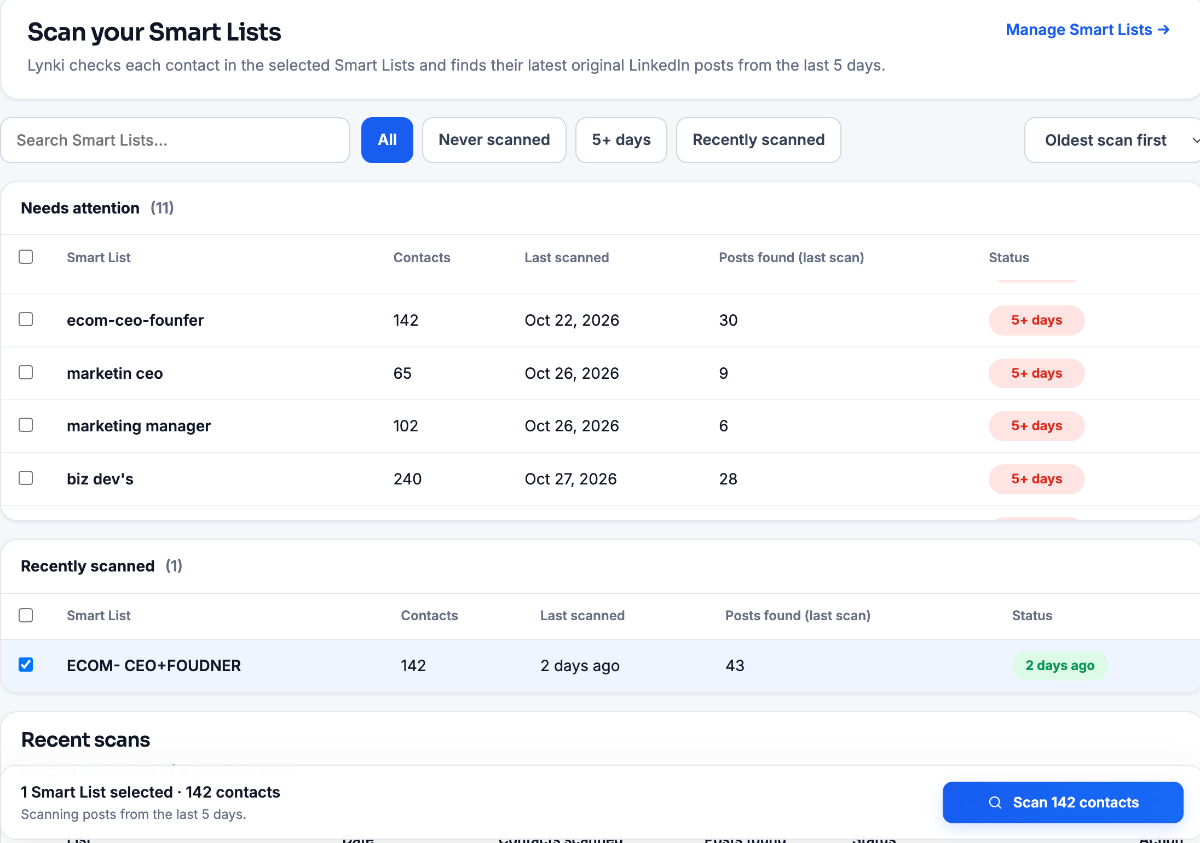
Choose the list, then scan it.
Pick a Smart List and Lynki checks those contacts for recent posts. Only that list is read — never your entire feed, and never the algorithm’s version of your network.
- Contact totals at the top: 7,514 synced, 7,418 classified by industry and role.
- Lists are grouped by urgency — the ones untouched for five days sit in Needs attention.
- Scan 142 contacts runs one list only, so the feed never gets read instead of the list.
- Smart List
- Scan
- Recent posts
02Engage with context
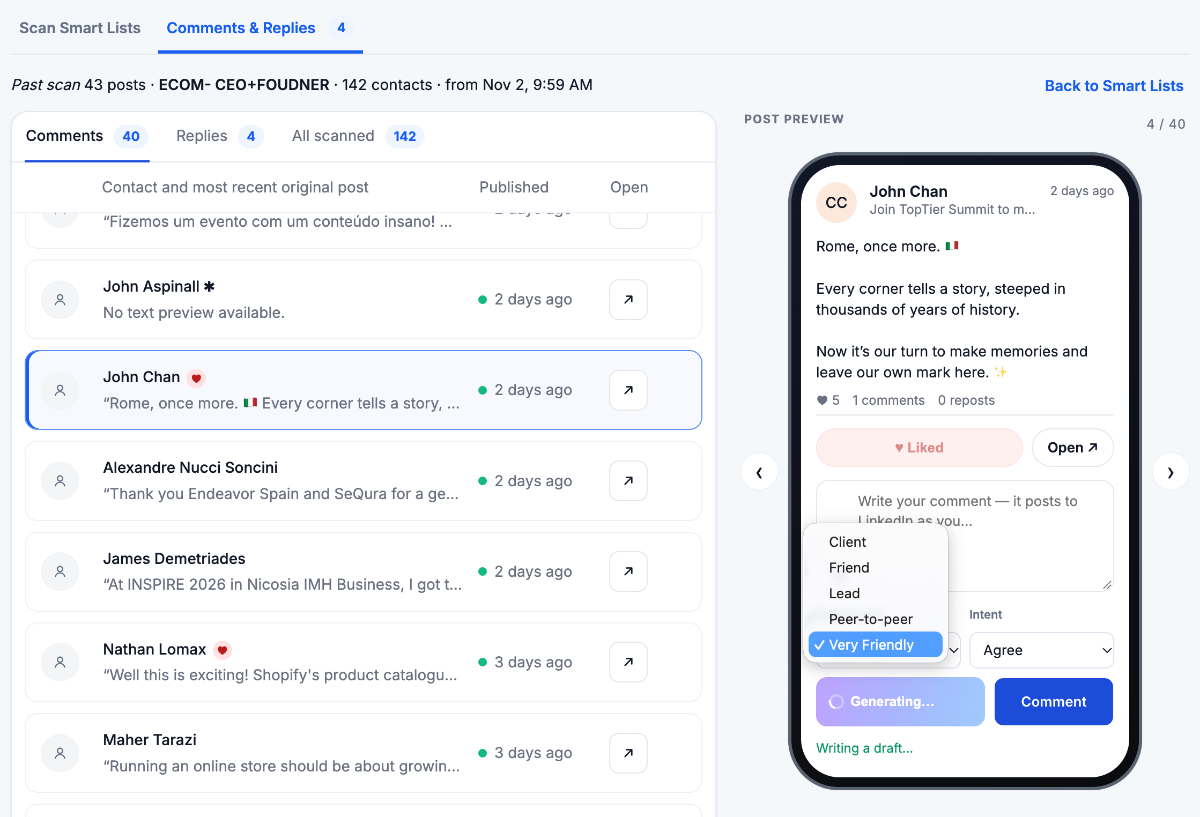
Write with context, not generic AI.
Two decisions sit above the draft: who this person is, and what you want the response to do. Lynki writes from those, then hands you the pen.
Engage · ComposerSample data
Try the frame
Relationship
1Who is this person to you?
A reply to a peer reads differently from a first message to a client. The frame changes the sentence, not just the tone.
- Peer-to-peer
- Client
- Lead
Intent
2What should the response do?
Add a point of view, back their argument, or ask one clear question. Choose one and the draft commits to it.
- Perspective
- Support
- Question
Change Relationship and Intent on the right, and the draft rewrites itself.
03Follow up
A comment is only the beginning.
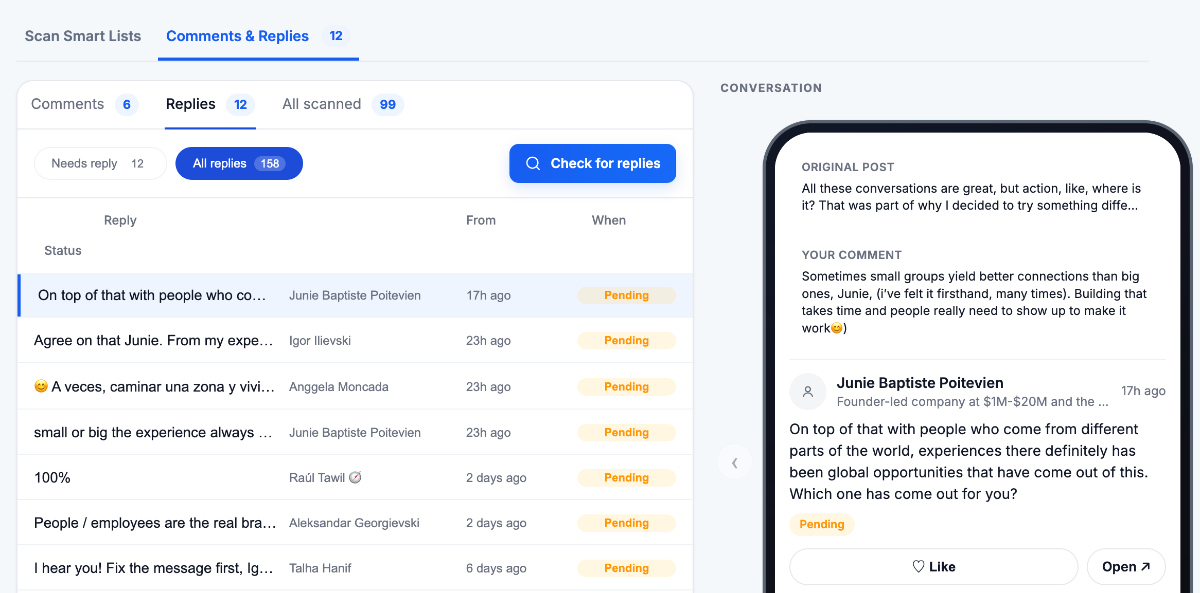
Lynki keeps the reply, the status and the whole thread in one place — so a good conversation doesn’t quietly end in your notifications.
- Replies stay visibleA response to your comment lands in the tracker, not in a notification you'll never reopen.
- Every thread has a statusPending until you have answered it, so nothing quietly drops off your list.
- The whole thread firstThe original post, your comment and their reply — all of it before you write back.
Human control
Lynki suggests. You decide.
Nothing gets published until you approve it. That is not a setting you switch on — it is how the workspace works.
- Nothing posts on its ownEvery comment, reply and post waits for your approval before it goes anywhere.
- You edit every lineRewrite the wording, change the angle, or reset the frame and start again.
- AI works from what you addDrafts are built only from the knowledge you choose to provide — nothing else.
Engage more intentionally with the network you already have.
Smart Lists decide who you see, Relationship and Intent decide how you answer, and nothing goes out until you approve it.
Comment frame
Illustrative